# $ONYX Pools Guide
1. Before you can stake in $ONYX Pools, please make sure you have $ONYX tokens in your wallet. This can be done either by [Buying $ONYX](https://halo-lending.gitbook.io/onyx-dao/getting-started/quickstart-guides/buy-usdonyx-guide) or by [Farming $ONYX](https://halo-lending.gitbook.io/onyx-dao/getting-started/quickstart-guides/farms-guide).
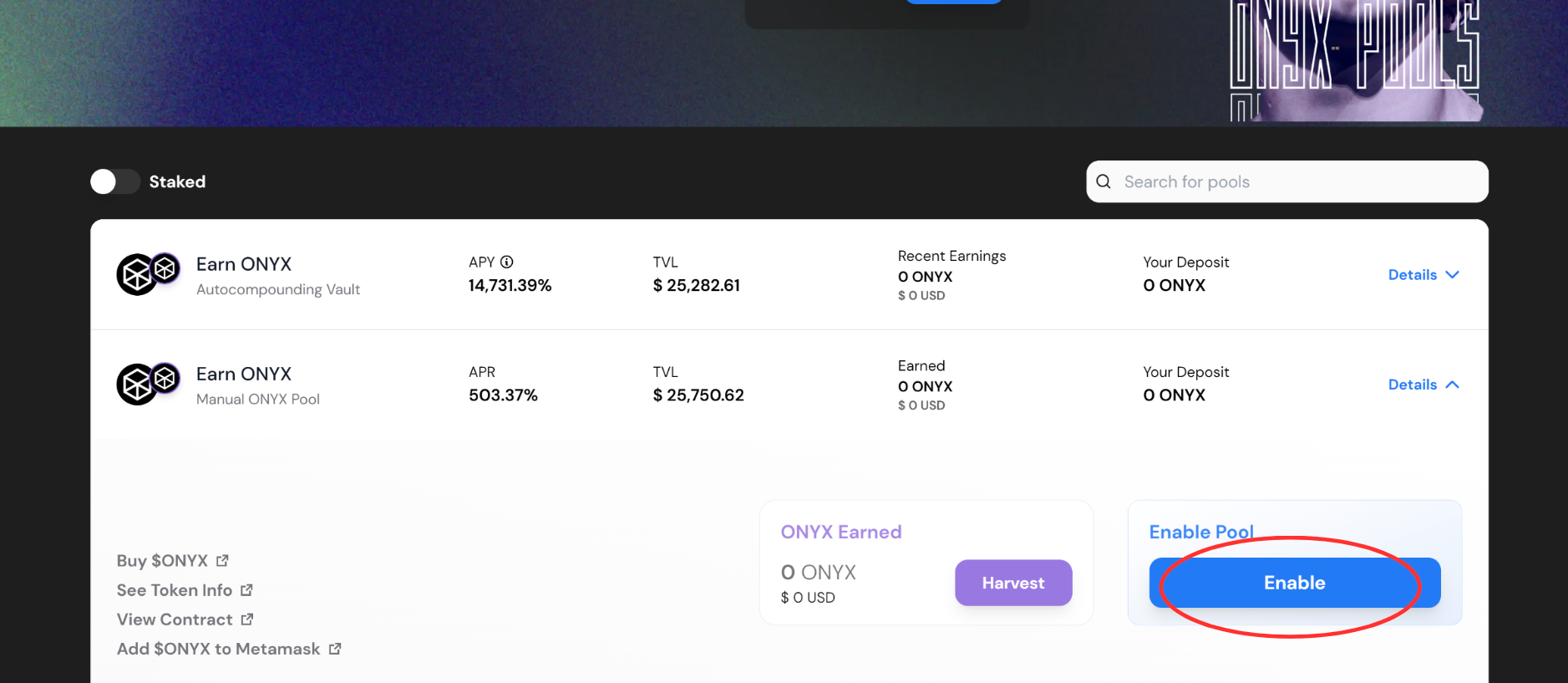
2. Once you have $ONYX tokens, go to the Pools page and expand the card of the Pool you would like to stake in.
3. Next, you will need to click the "Enable" button. You will then need to confirm the transaction in your wallet pop-up browser.
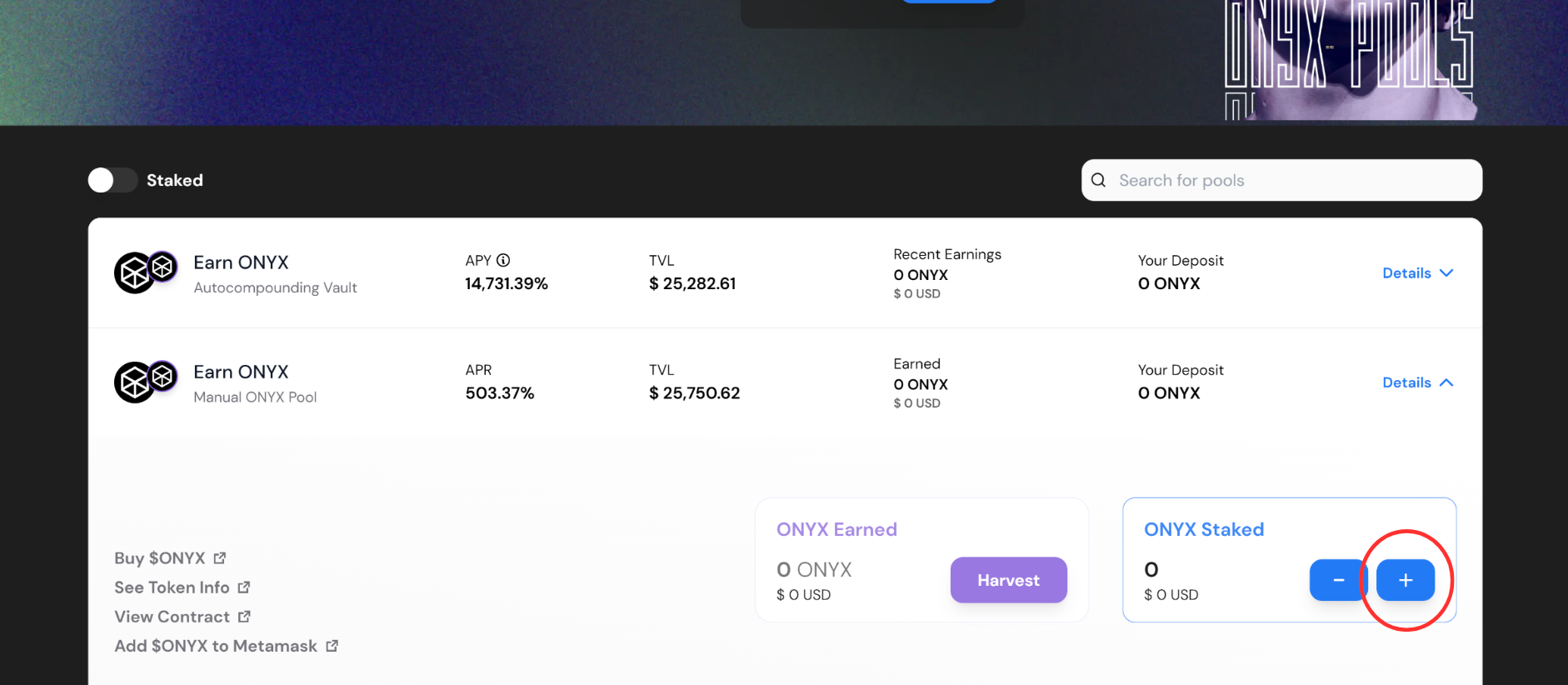
4. Once this transaction is successful, you will now need to click the "+" button to bring up the stake $ONYX pop-up module.
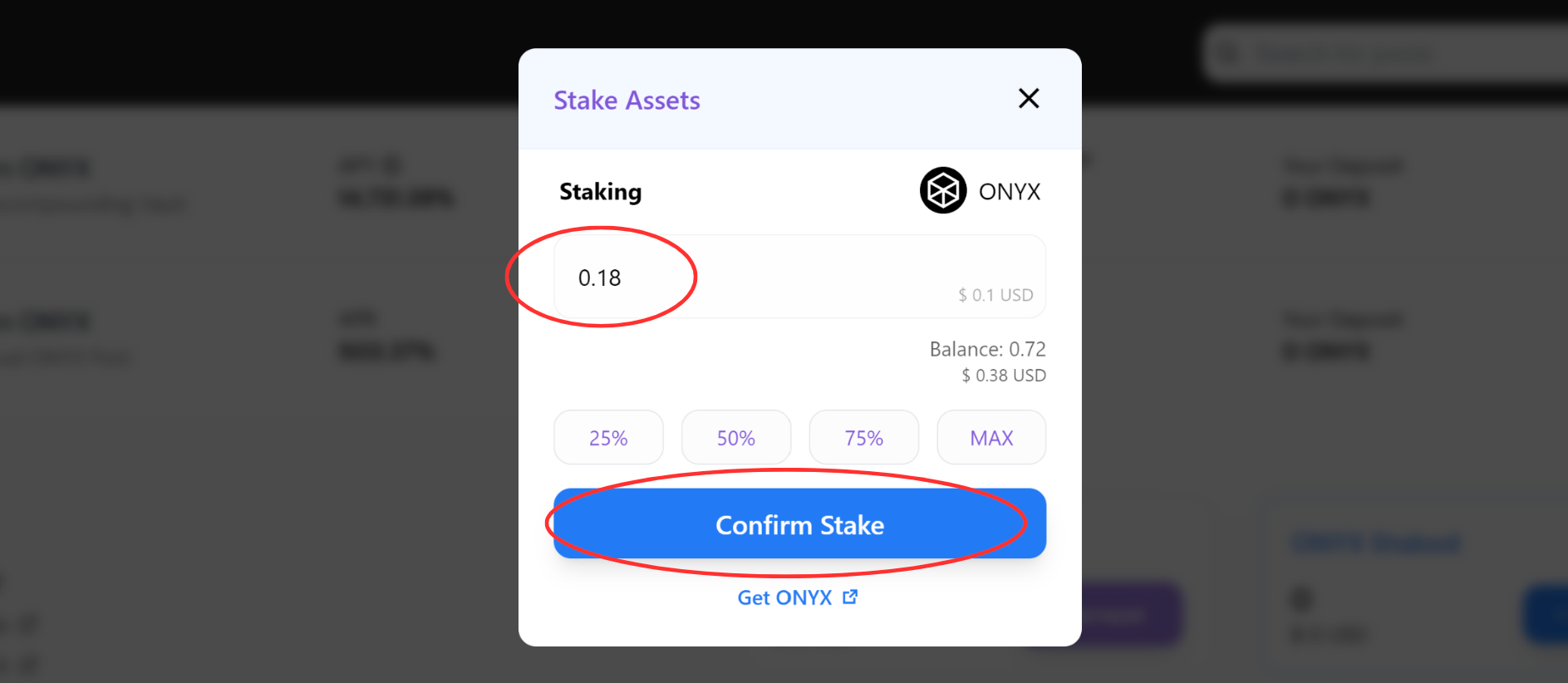
5. You will now need to input how much $ONYX you would like to stake. You can either enter the amount manually, or by clicking a percentage button. Once your desired amount has been entered, click "Confirm Stake". You will then need to confirm in your wallet browser.
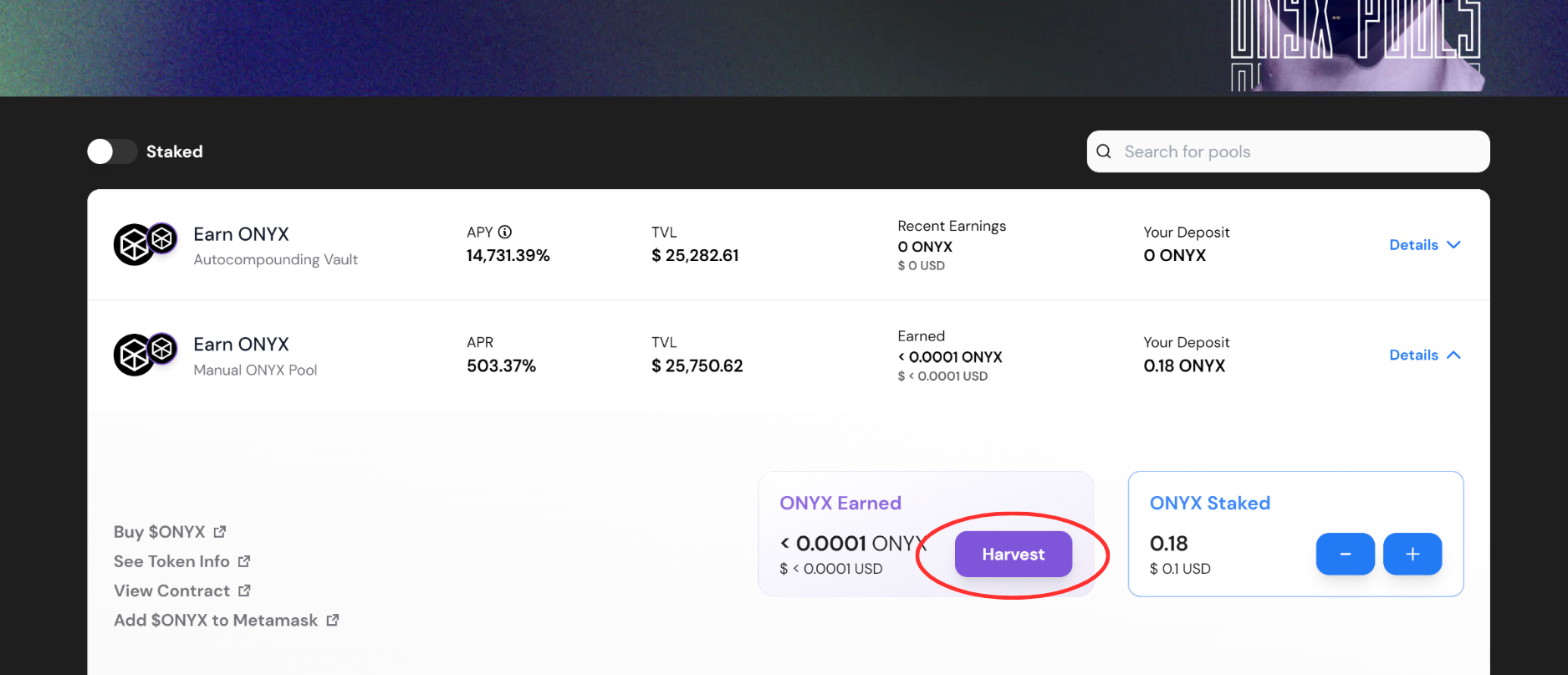
6. You are now successfully staked in the Onyx Pool! Your rewards will start accumulating. To claim your rewards, please click "Harvest". You will need to confirm the transaction in your wallet pop-up browser. If the transaction is successful, the harvested tokens will be sent to your wallet.
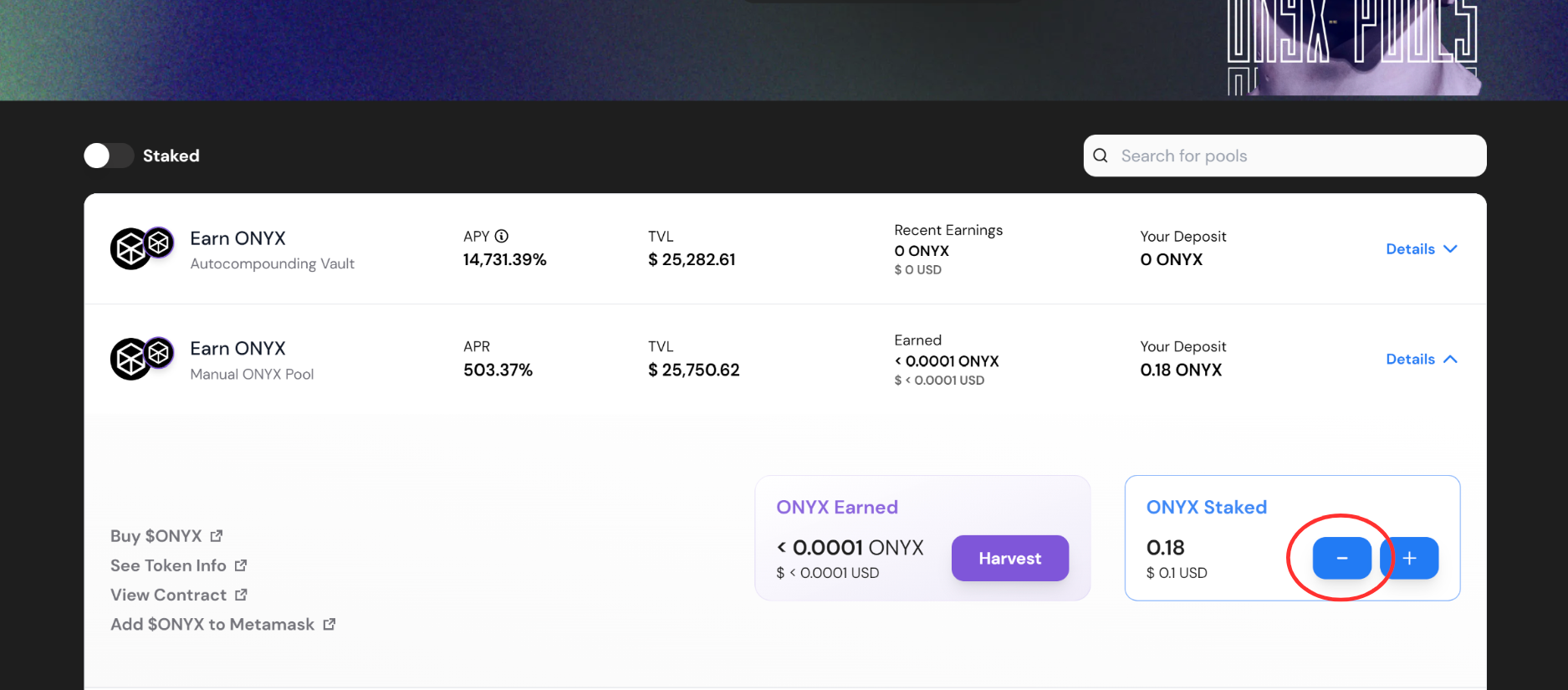
7. To unstake your $ONYX tokens, click the "-" button. This will bring up the unstake pop-up module.
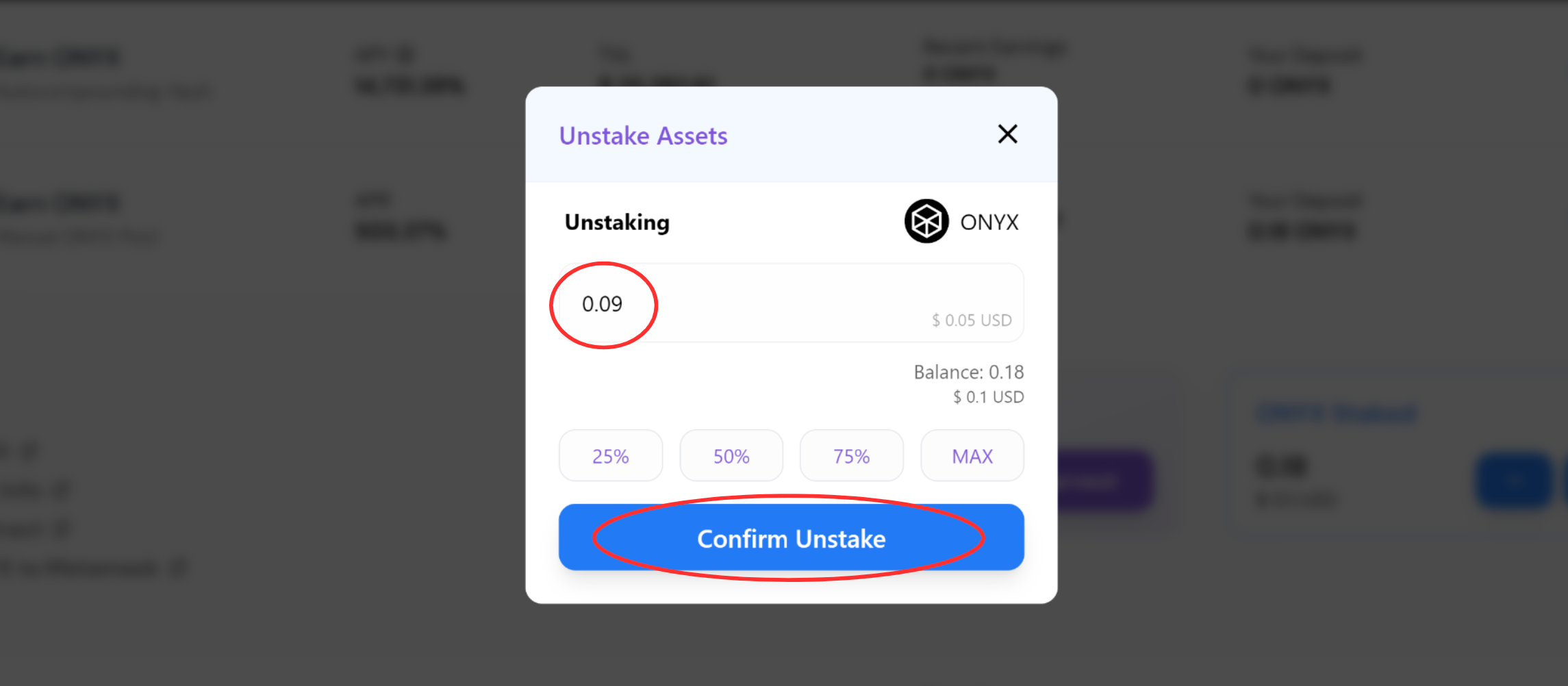
8. Enter the amount you would like to unstake either manually, or by clicking on one of the percentage buttons. Once your desired amount has been entered, please click "Confirm Unstake". You will then need to confirm the transaction in your wallet pop-up menu.
9. Once your unstake transaction has been confirmed, your tokens will be sent to your wallet along with any pending rewards.